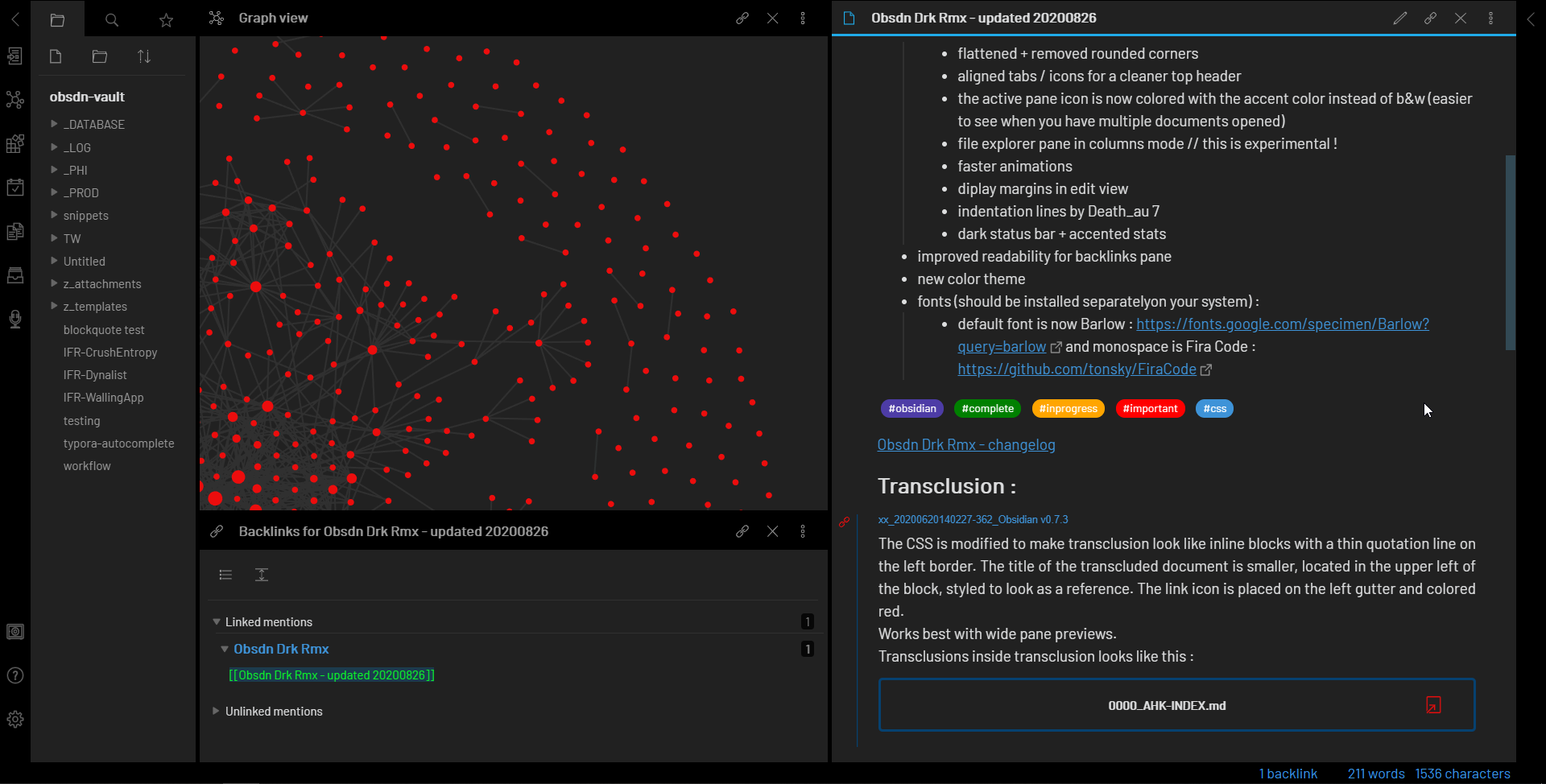
Why Obsidian Fits Research Workflows
Obsidian works best as a clear sequence: define the constraint, compare the realistic options, test the tradeoff, and choose the path with the fewest hidden costs. That order keeps the advice usable instead of decorative.
After each step, pause long enough to check whether the recommendation still fits the reader's actual situation. If it depends on perfect timing, unusual access, or a best-case budget, include a simpler fallback.
The simplest way to use this section is to keep the setup small, verify each change, and record the stable configuration before adding optional accessories.
Core Setup Steps for New Vaults
Building a scalable knowledge system in Obsidian starts with a clean slate. A disorganized vault quickly becomes a digital graveyard, making retrieval harder than the initial research. This section walks you through the essential scaffolding: folder structure, daily notes, and a home Map of Content (MOC).
Think of your vault like a library. You wouldn't throw every book on the floor; you'd use shelves and a catalog. Obsidian works the same way. The goal here is to establish a minimal, functional foundation that allows your knowledge to grow organically without becoming chaotic.
Do not over-engineer your folders on day one. A flat structure with a few broad categories—such as Inbox, Projects, Archive, and Resources—is often enough. This prevents the "folder paralysis" that stops many new users from writing. You can always create subfolders later as specific topics demand more space. The key is consistency, not complexity.
Daily Notes are the heartbeat of your system. They provide a default place to dump unstructured thoughts, meeting notes, or fleeting ideas. Go to Settings > Core Plugins and turn on Daily Notes. Configure it to open the daily note on launch if you want a quick capture point. This habit ensures you never lose a thought because you couldn't find the right folder.
Your Home MOC is the dashboard of your vault. Create a note named Home or MOC - Index. This note should contain links to your main areas of interest, active projects, and recurring workflows. Instead of searching through folders, you start here. As your vault grows, this single note becomes your primary navigation tool, connecting disparate ideas into a coherent whole.
Community plugins extend Obsidian's core functionality, but start with only the essentials. The Dataview plugin is invaluable for querying notes dynamically, while Templater helps automate repetitive tasks like daily note headers. Avoid installing dozens of plugins at once; each one adds potential friction. Master the core features first, then add tools only when a specific workflow breaks.
Essential Plugins for Analysis
Obsidian starts as a simple text editor, but its plugin ecosystem turns it into a data engine. For building a scalable knowledge system, you need tools that query your notes and automate repetitive tasks. The following plugins handle the heavy lifting, allowing you to focus on synthesis rather than formatting.
Dataview
Dataview transforms your vault from a collection of files into a queryable database. Instead of manually updating tables or lists, you write queries that pull data from your notes in real time. This is essential for market analysis where you track assets, trends, or research findings across hundreds of files.
You can create dynamic tables that update automatically as you add new notes. For example, a query can list all notes tagged with #market-analysis and display their last modified date and a specific custom field like risk_level. This eliminates the need for manual index pages.
TABLE risk_level, status
FROM "#market-analysis"
SORT risk_level ASC
Templater
Templater goes beyond basic templates by allowing JavaScript automation. It is the engine that powers consistent workflows. When you create a new note, Templater can automatically insert metadata, link related documents, or fetch external data.
Use it to standardize your research notes. A single template can prompt you for key metrics, format the header correctly, and even link to a related chart or widget. This consistency is what makes your vault scalable; every new entry fits the system immediately.
Obsidian Charts
For visual learners, Obsidian Charts allows you to render graphs directly within your notes. You can define data points in a table and choose from bar, line, or pie charts. This keeps your analysis self-contained, rather than switching to an external spreadsheet.
It is particularly useful for visualizing trends over time or comparing categories. You can embed these charts in your markdown files, making your reports interactive and visually clear without leaving Obsidian.
Structuring Notes for Long-Term Use
Obsidian works best as a clear sequence: define the constraint, compare the realistic options, test the tradeoff, and choose the path with the fewest hidden costs. That order keeps the advice usable instead of decorative.
After each step, pause long enough to check whether the recommendation still fits the reader's actual situation. If it depends on perfect timing, unusual access, or a best-case budget, include a simpler fallback.
The simplest way to use this section is to keep the setup small, verify each change, and record the stable configuration before adding optional accessories.
Common Setup Mistakes to Avoid
The most common reason Obsidian setups fail is over-engineering. New users often spend weeks designing complex folder hierarchies before they have written a single note. This approach treats your vault like a filing cabinet rather than a network of ideas.
Do not impose a rigid folder structure at the start. Let your folder organization evolve naturally as your notes grow and reveal their relationships.
Obsidian’s power lies in bidirectional linking, not deep directory trees. When you force notes into predefined categories, you ignore the context that links provide. A note about "market volatility" might belong in "finance," but it also links to "psychology" and "data analysis." Pre-sorting these connections creates friction and slows down your thinking process.
Start simple. Use a flat structure or broad categories like "Inbox" and "Projects." As your vault expands, use tags or the Graph View to find patterns. Only then should you consider creating subfolders. This method keeps your workflow fluid and prevents the paralysis that comes from trying to predict how your knowledge will grow.
Obsidian setup checklist
Before you start linking notes, run through this quick verification. It ensures your vault is stable and ready for daily research without the friction of missing tools.
Open Settings > Core Plugins. Enable Daily Notes, File Explorer, and Command Palette. Disable anything you don't recognize yet; you can always turn it back on later.
Go to Settings > Community Plugins. Turn off Safe Mode and install Dataview, Templater, and Obsidian Git. These three handle data queries, automated note creation, and version control.
Build a simple structure: 00 Inbox for raw captures, 10 Projects for active work, and 20 Archives for finished items. Keep it flat initially to avoid over-engineering.
Create a Daily Note and add a link to a new file. Check if Dataview renders the link correctly. If it does, your system is live and ready for use.
Visualizing Your Research Data
To effectively track the relationships between your research notes and visualize data trends, you need a structured view of your vault's content. The following chart demonstrates how to map your primary research categories against their associated tags and status.
This visualization helps you see at a glance which areas require more attention. By integrating this view into your daily workflow, you can ensure that your knowledge base remains balanced and comprehensive.
No comments yet. Be the first to share your thoughts!